Branded Tracking Experience Setup
Set up the customer-facing tracking page and automated delivery notifications
Rendr provides your customers with a branded tracking page and a suite of automated notifications (SMS and email) that fire as an order moves through the delivery lifecycle. This page outlines what you can customise, what each customer touchpoint looks like, and how the workflow ties together end-to-end.
Overview
Once an order is booked through Rendr, your customer is taken on a guided journey from confirmation through to delivery. Each stage has a corresponding communication and a live tracking experience.
The Tracking Page
Rendr’s tracking page is shared with your customers so they can receive real-time updates on their order throughout the journey. The page can be branded to match your store, with key information — including driver ETA, delivery requirements, and help call-to-actions — surfaced prominently.
What You Can Customise
- Logo and brand colours – Match your storefront identity
- Hero image / custom beacon – A branded visual at the top of the tracking page


Customer Communications
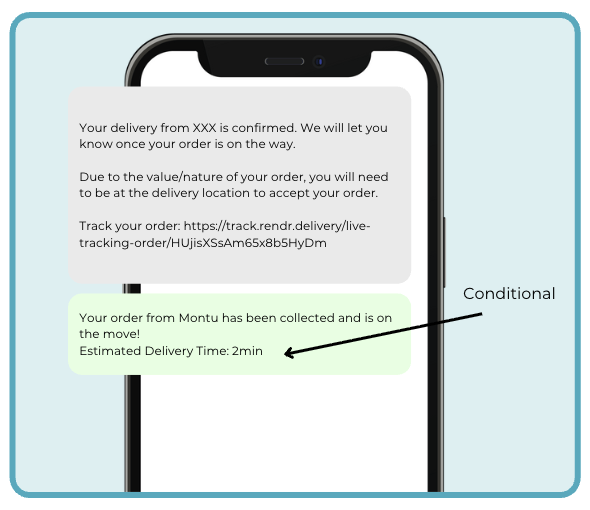
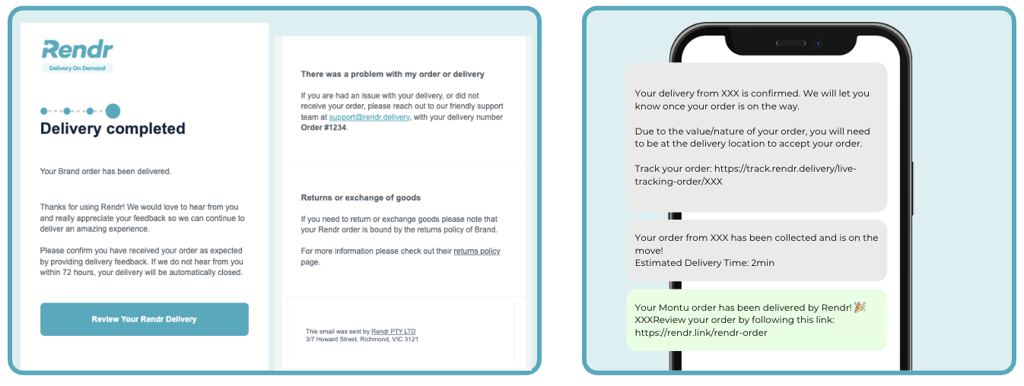
Customers receive automated SMS and email notifications at each key milestone. Conditional messaging can be applied based on order value, authority-to-leave (ATL) rules, or product type.
Booked
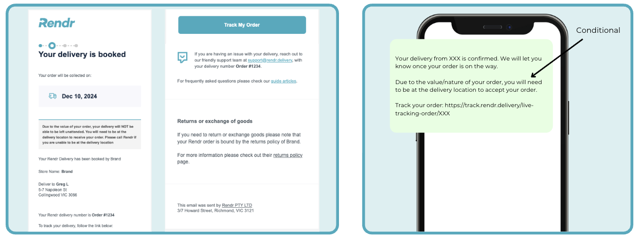
Sent when a delivery is booked through Rendr. Confirms the order is received and sets expectations for the next update. Conditional content (e.g. ID-on-delivery, no-ATL) appears here when triggered by order rules.
Conditional Messaging
Rendr supports conditional message variants so customers receive the right information for their order.
Updating Delivery Instructions
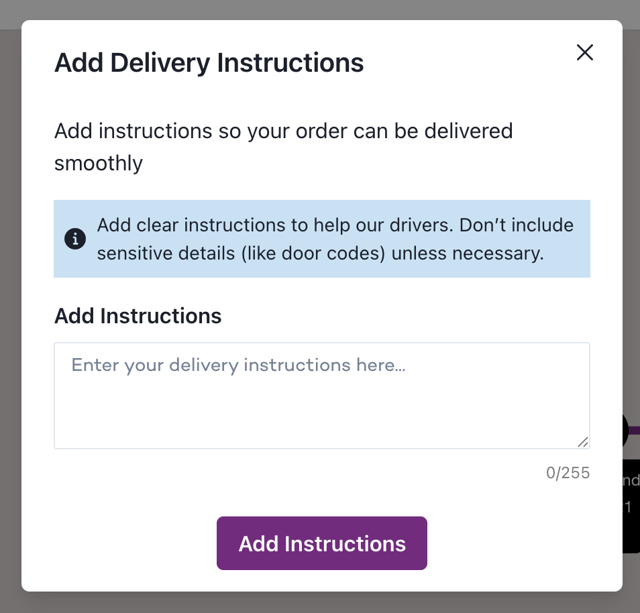
For supported carriers, customers can update their delivery instructions after an order has been booked.
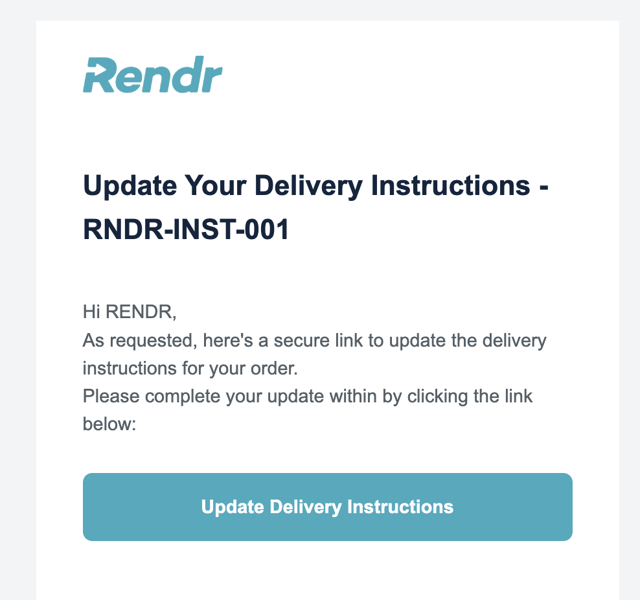
The flow is intentionally lightweight and secure: customers don’t update instructions directly on the tracking page. Instead, they request a secure link via email, then submit their changes through that link. This protects against unauthorised changes while the order is in transit.
Requesting a link
On the tracking page, the customer selects Update Instructions. This option is only shown when the assigned carrier supports mid-delivery instruction updates.

Retrieving Proof of Delivery
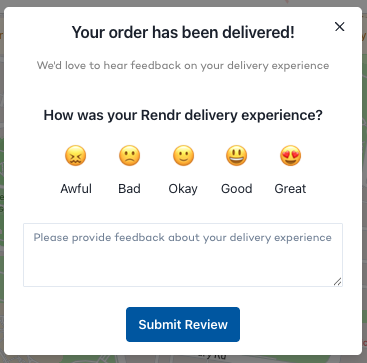
If an order is completed by a carrier that supports proof of delivery (POD), customers can request their POD directly from the tracking page once the order has been delivered.

The Request POD component is only shown when the assigned carrier supports POD and a POD has been captured and returned to Rendr for that delivery. Otherwise it’s hidden and the tracking page behaves as normal.
End-to-End Workflow
Together, these pieces form a single flow between you, Rendr, the carrier, and your customer — from booking, through branded tracking and notifications, to delivery, feedback, and (where applicable) proof of delivery.