Create a Delivery
Deliveries can be created on the Rendr Merchant Portal with minimal data entry.
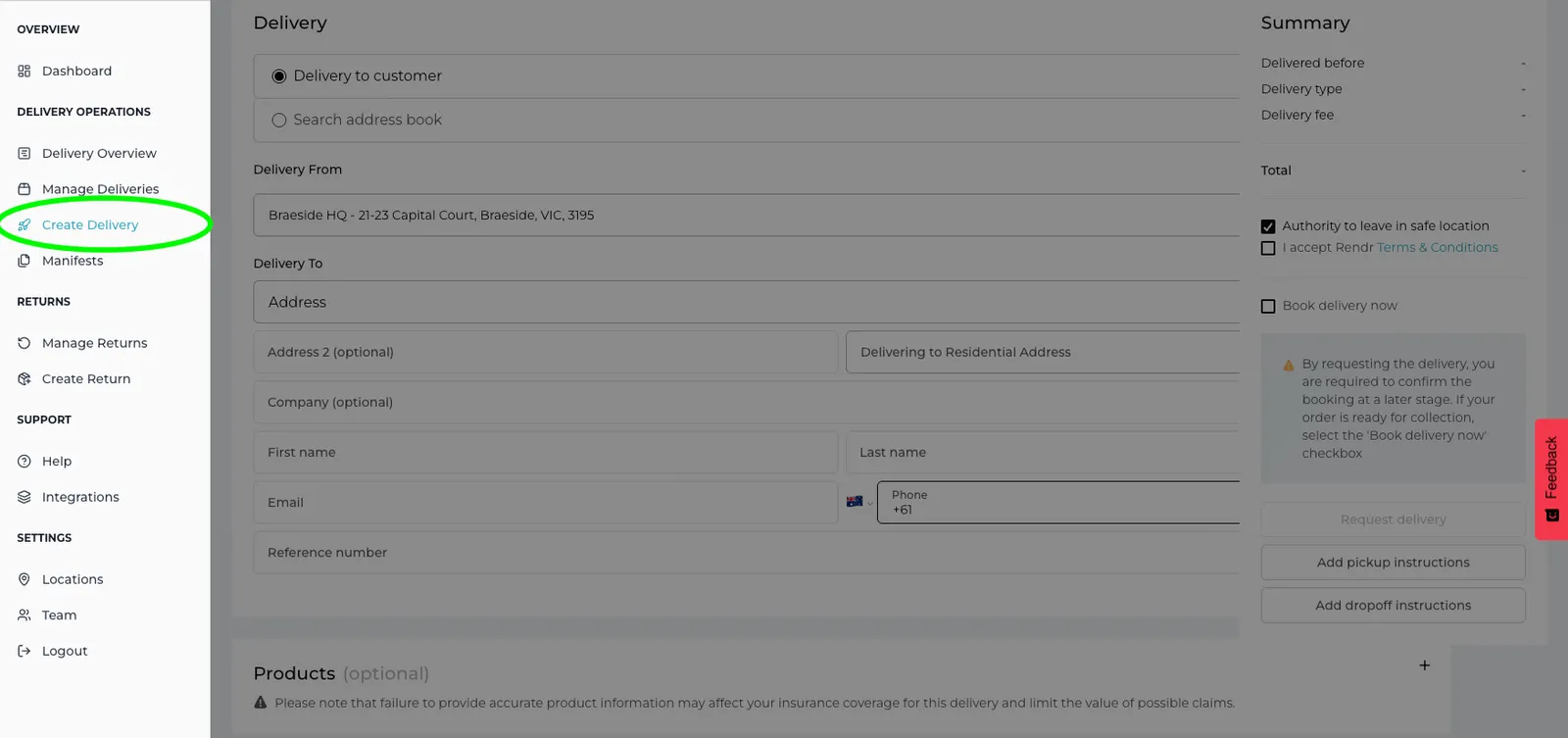
Choose a delivery type
Choose the type of delivery you want to create:
- Delivery to customer: send an order to a customer’s address.
- Search address book: useful if you have sent to an existing customer before. An automated address book populates the delivery information for you.
- Transfer between stores: useful if you manage multiple stores inside the Rendr Delivery Dashboard.
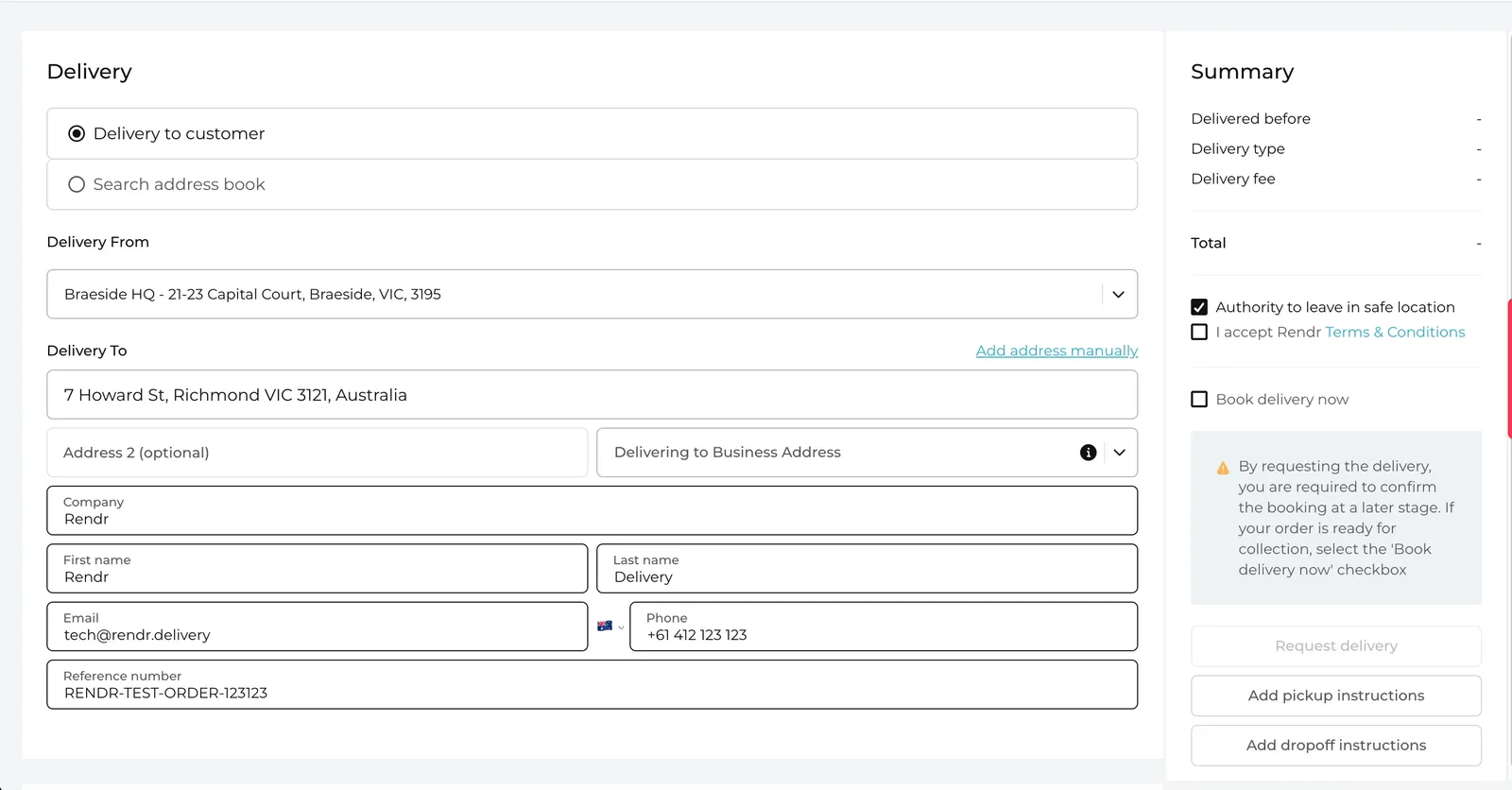
Enter delivery details
- Select the location you’re delivering from.
- Enter the receiver’s information. First and last name, email and phone are required.
- Select whether you’re delivering to a Residential or Business address.
- Enter a reference number for this customer order.
Delivery updates (Order Placed, Booked, Collected and Delivered) are sent to the receiver.
Add product details (optional)
Product details aren’t required, but we recommend entering them for insurance and reporting purposes. If left blank, placeholder values are used when creating the booking with the assigned driver.
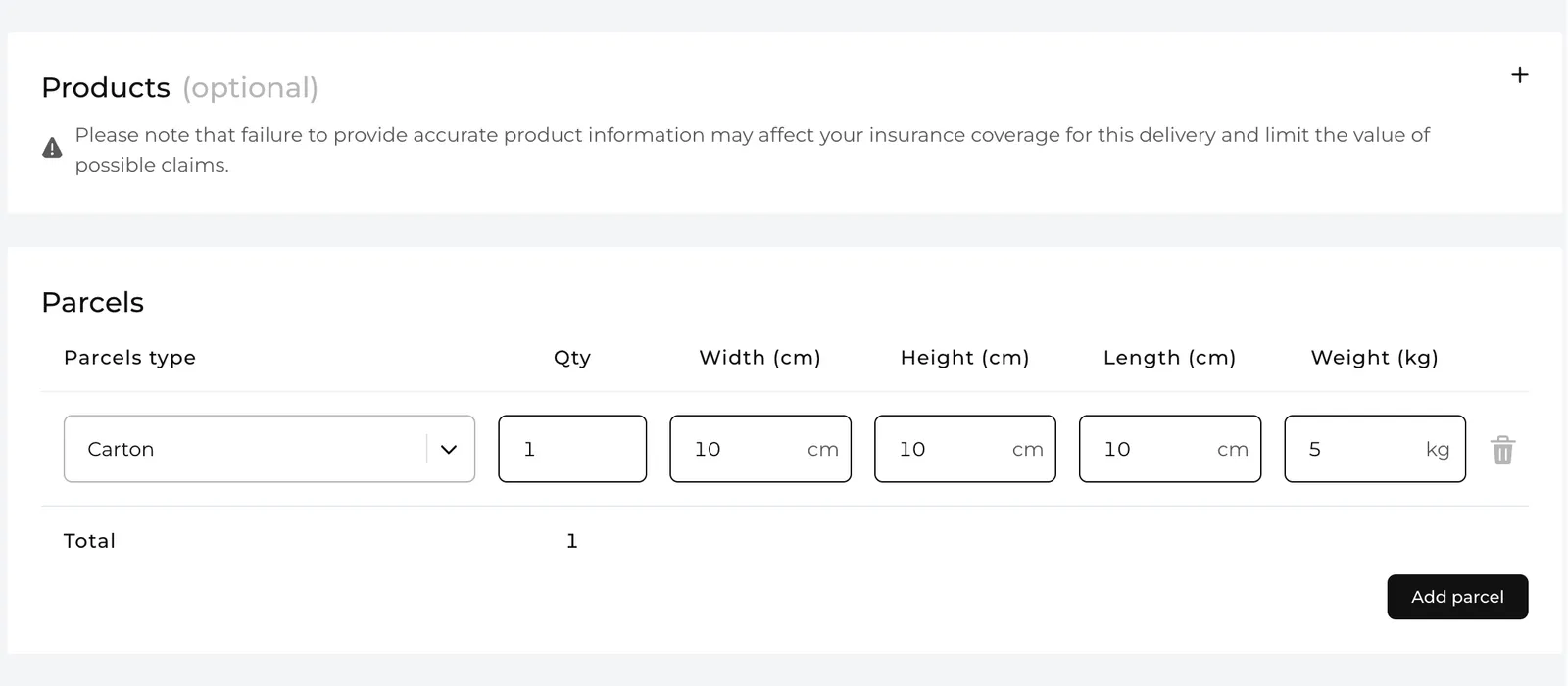
Add parcel details
Parcel details are required so Rendr can calculate the most appropriate driver and available services.
Enter the parcel you want to send, including the parcel type, quantity, dimensions (cm) and weight (kg). If you are sending more than one parcel, click Add Parcel.
Add special requirements (if applicable)
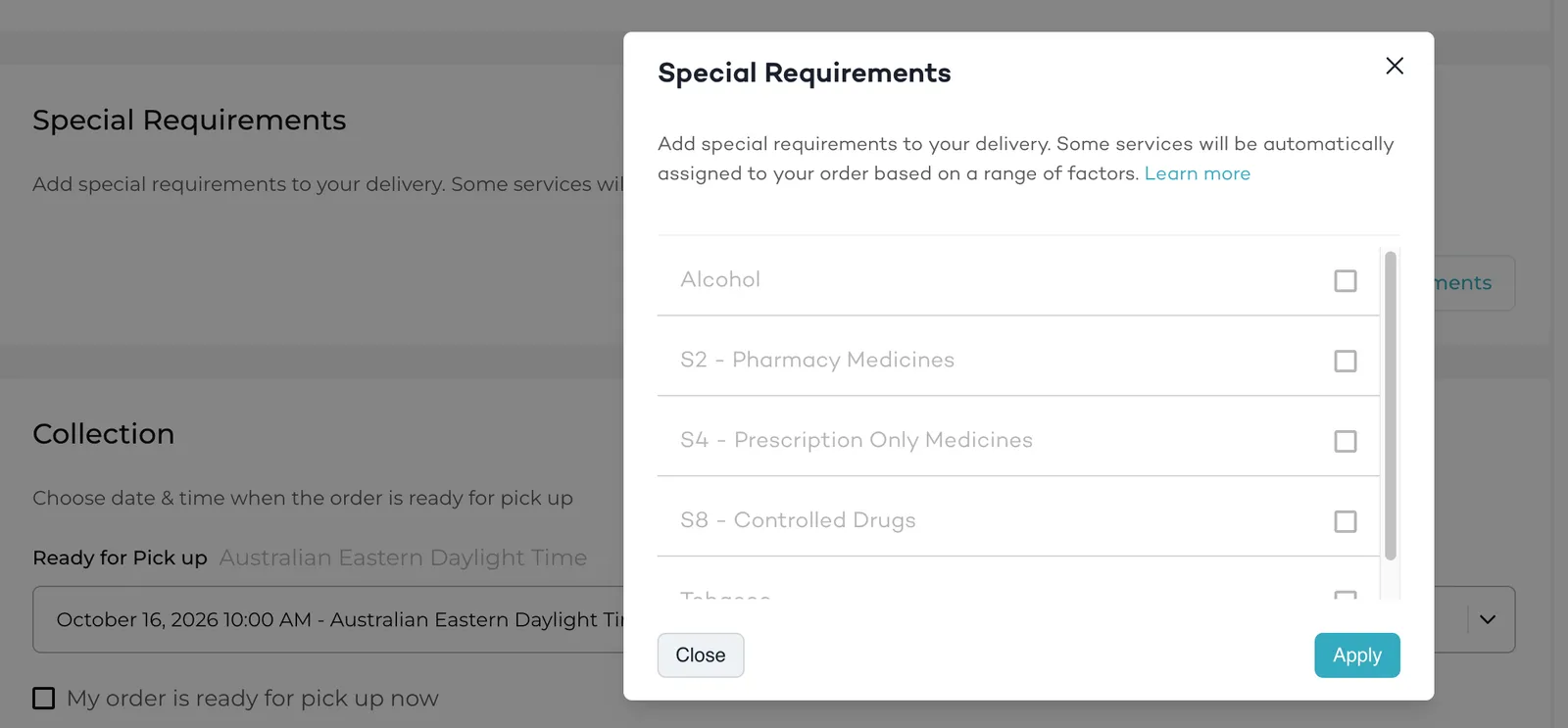
Additional requirements can be added prior to booking. If you are sending special items such as Tobacco, Medicine/Prescription or Alcohol, this step will be available.
Set collection details
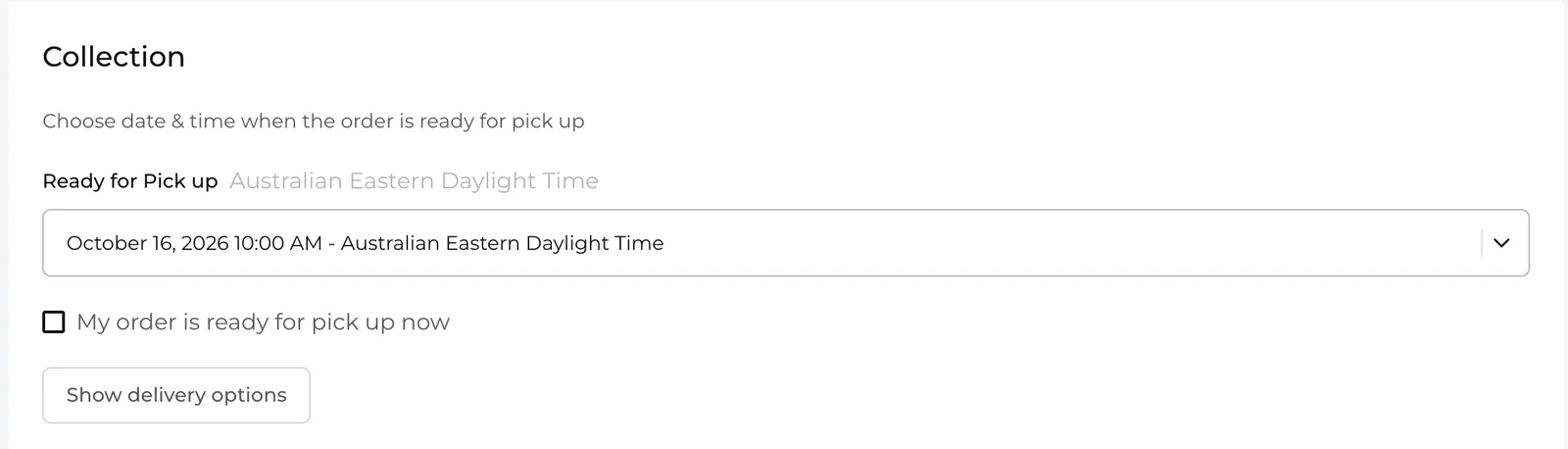
Select the time the order will be ready for collection. This time is used to notify drivers when they can collect the order, and may impact price and available services.
Selecting My order is ready for pickup now sets the collection time to the next available slot and automatically selects Book Delivery Now.
Choose delivery options
Select Show delivery options to see available services, including delivery type, price, and estimated delivery time:
- Rendr Fast (30 minutes – 3 hours)
- Rendr Flexible (Same Day)
- Rendr Standard (Overnight / Interstate)
Review the order summary
Check the following details in the order summary:
- Delivered before: the date you selected
- Delivery type: Rendr Fast (3-hour), Rendr Flexible (Same Day) or Rendr Standard
- Delivery fee: the cost of the delivery
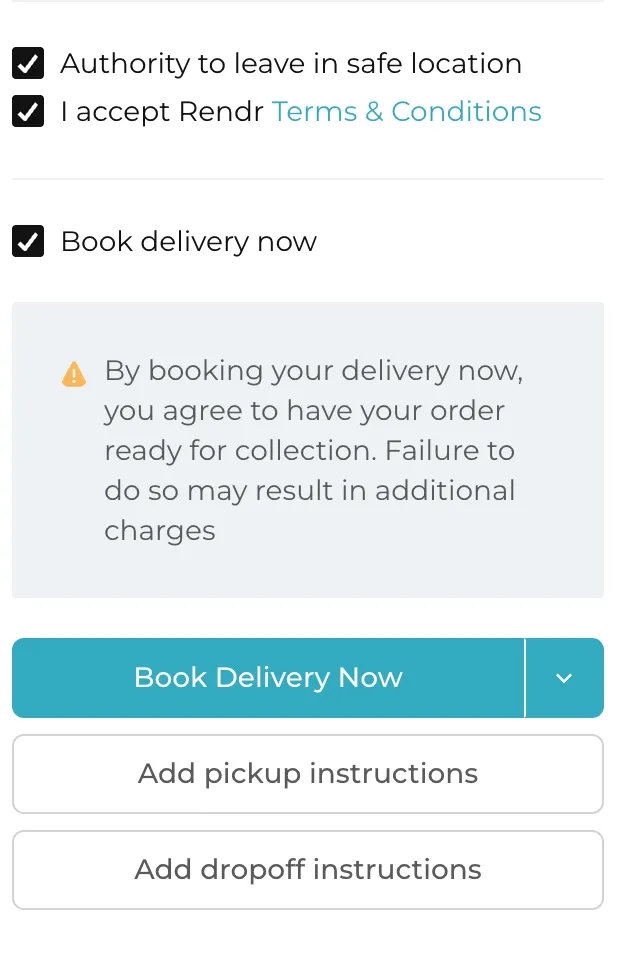
You can also configure Authority to Leave (ATL) for the order. By default, ATL is Enabled (ON). To override it, deselect the Authority to Leave checkbox and add delivery instructions. These instructions are passed to the driver and printed on the delivery label.
Request or book the delivery
Choose whether to request or book the delivery now.
- Request the delivery: untick Book delivery now. You will need to confirm the booking at a later stage, and the order will go to your Manage Deliveries menu.
- Book the delivery now: if your order is ready for collection, select the Book delivery now checkbox.
By booking your delivery now, you agree to have your order ready for collection. Failure to do so may result in additional charges.
You can also add any pick-up and/or drop-off instructions. These are passed to the driver and printed on the delivery label.