
Manage Locations
The Locations tab in Delivery Dashboard lets you view, create, and manage all of your store locations. From here, you can update addresses, operating hours, pickup instructions, and contact details to ensure deliveries are correctly routed and customers receive accurate information.
Access to the Locations section is restricted to users with the appropriate permissions. Certain actions, such as creating or editing locations, require elevated access rights. If you don’t have the necessary permissions, contact your Head Office or Rendr Support for assistance.
Viewing Locations
- Navigate to the Locations tab in the sidebar menu.
- Use “Status” filters to view locations by status (Active, Pending, or Disabled), or use the search bar to quickly find a specific location.
- From the list you’d be able to view:
- Location name
- Rendr Store ID
- Location address in Rendr system
- Status
Only the locations you have access to will be displayed. Contact your Brand Administrator for additional permissions.
Creating a Location
Fill in the details
Location Details:
Operating Hours Details:
Want to know more about operating hours and orders cut-off times?
Check our FAQ - Order Cut-Off Times.
Pickup Instructions:
- Enter any specific pickup instructions for the driver/courier when collecting orders from your store. This will be particularly useful if you are shipping from a warehouse or a store with specific SOP (Standard Operating Procedure).
Store Contact Details:
Managing Location Details
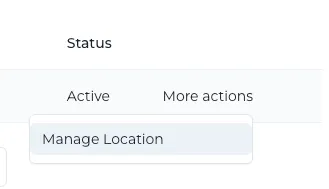
To edit details of a particular location:
- Search for the specific location from the list
- Click on “More Actions” button
- Manage Location menu should pop-up
Address Management
Update addresses via autocomplete or by manually entering fields. When an address is updated, you’ll be alerted that all future deliveries will be collected from the new location.
Geolocation
Adjust coordinates directly on the map or via manual latitude/longitude entry.
Operating Hours
Want to know more about operating hours and orders cut-off times?
Check our FAQ - Order Cut-Off Times.
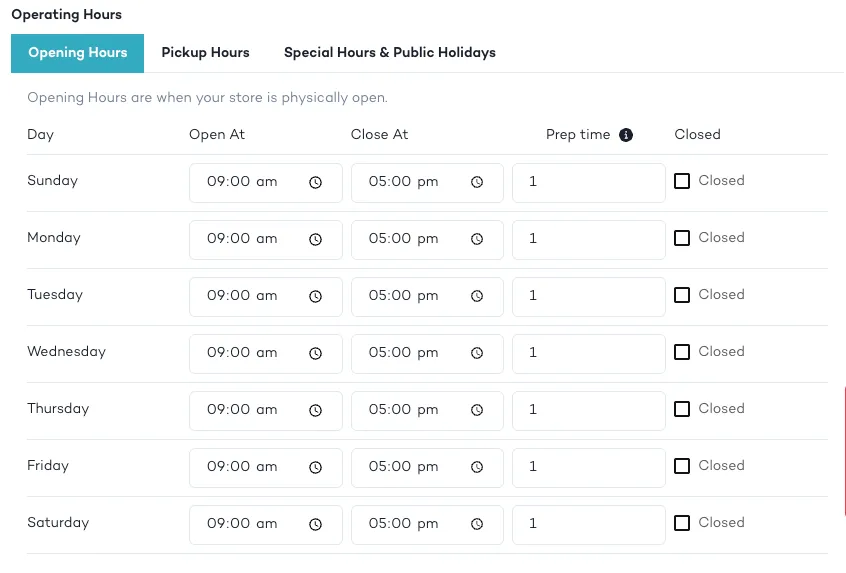
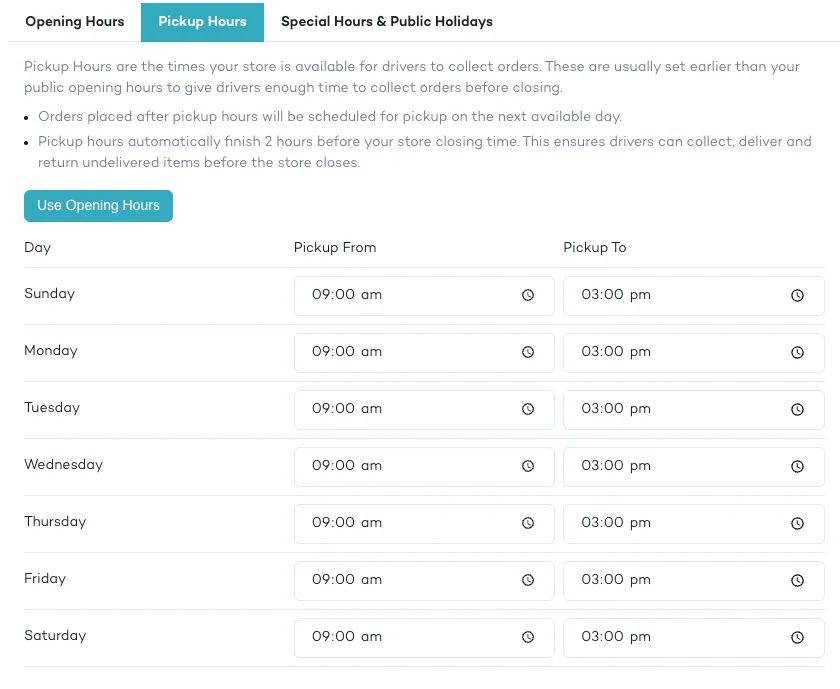
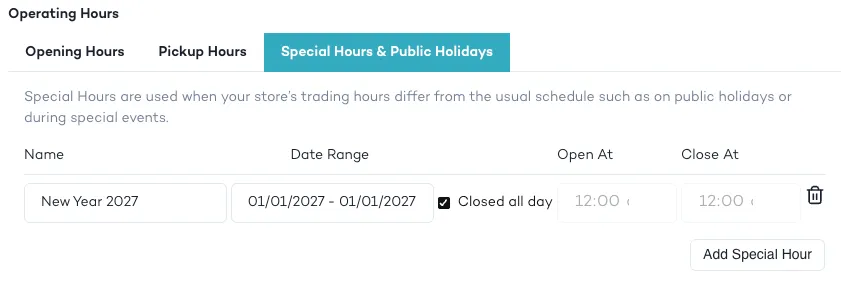
Pickup Instructions
Add or edit any specific pickup instructions for the driver/courier when collecting orders from your store. This will be particularly useful if you are shipping from a warehouse or a store with specific SOP (Standard Operating Procedure).
Contact Details
Update the store’s contact name, phone, or email.
Location Status
Each location has a status that controls its availability for deliveries:
Status changes trigger automated email notifications to store and brand contacts.
Notifications & Workflows
Whenever changes are made to a location, the system automatically sends email notifications to the relevant store and brand contacts, including:
- Address updated
- Operating hours updated
- Contact updated
- Pickup instructions updated
- New location created
- Status changed