Skip to navigation

Enable Two-Factor Authentication

Secure your account with 2FA using an authenticator app
View as Markdown

To enhance the security of your account, Rendr supports Two-Factor Authentication (2FA). Follow the steps below to enable 2FA using an authenticator app such as Google Authenticator, Microsoft Authenticator, or Authy.

1

Access the portal

Log in to the Rendr V2 Dashboard and navigate to the Team section from the main menu.

2

Manage MFA settings

Select More Actions next to your user profile, then select Manage MFA. You’ll be prompted to enter your account password for verification.
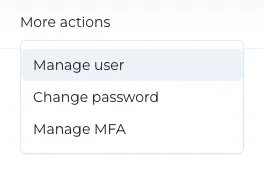
More actions menu with Manage MFA option
3

Configure MFA

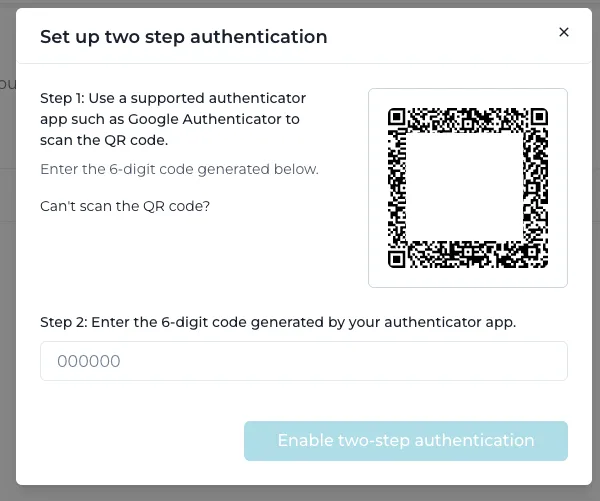
A QR code will be displayed. Open your preferred MFA app and scan the QR code — or, if you can’t scan it, manually enter the secret key shown below the QR code into your app.

Set up two step authentication modal with QR code
4

Verify setup

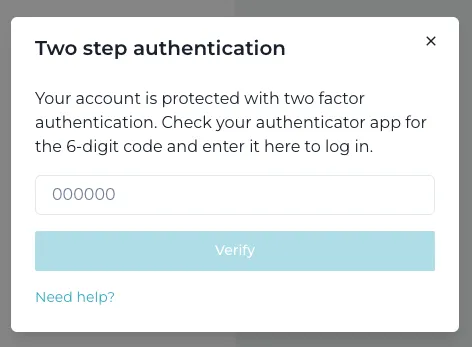
Your MFA app will generate a 6-digit code. Enter this code into the portal to complete setup. Once enabled, you’ll need to enter a valid MFA code every time you log in.

Two step authentication verification modal

Disabling 2FA

2

Manage MFA

Select More Actions → Manage MFA, and enter your password and current MFA code when prompted.

3

Disable

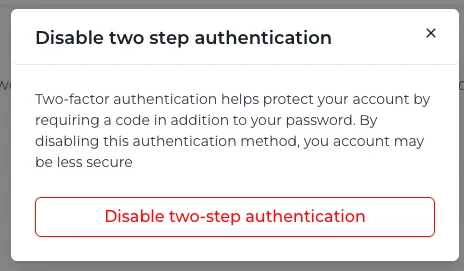
Select Disable two-step authentication.

Disable two step authentication confirmation modal

Disabling 2FA reduces the security of your account. We strongly recommend keeping it enabled.

If you encounter any issues during setup, contact support@rendr.delivery for assistance.