
Rendr in Shopify Local Delivery
Use Shopify’s built-in Local Delivery at checkout and fulfil those orders with Rendr
Overview
Shopify Local Delivery is a built-in Shopify feature available on all Shopify plans. No additional app installation is required.
This guide explains how Shopify Local Delivery can be used alongside Rendr, and how Local Delivery orders can flow into the Rendr Delivery Dashboard or other shipping & fulfilment platforms (such as Starshipit).
This setup allows you to use Shopify’s native Local Delivery feature to control checkout delivery logic, while still fulfilling those orders through Rendr or an external fulfilment platform.
Shopify Local Delivery is ideal for merchants who want:
- Full control over delivery zones and pricing
- Simple, native checkout configuration
- Location-based delivery logic without third-party rate apps
How it works
This setup enables:
- Multiple delivery locations
- Distance-based or postcode-based delivery zones
- Flat-rate or zone-based pricing
- Checkout messaging (cut-offs, delivery notes, SLAs)
- Flexible fulfilment routing into Rendr
This setup uses Shopify as the checkout and delivery rules engine:
- Shopify determines whether Local Delivery is available.
- Delivery eligibility is based on location, distance or postcode.
- Customers see Local Delivery as a checkout option.
- Orders are placed using Local Delivery.
- Orders are routed into either:
- The Rendr Delivery Dashboard, or
- An external fulfilment platform (e.g. Starshipit), which then books Rendr.
What you’ll need
- A Shopify store (any plan)
- Admin access to Shopify
- At least one Shopify location configured
- Inventory assigned to locations
- An active Rendr merchant account
Implementation steps
Step 1: Open Local Delivery settings
Local Delivery is configured per location.
Step 2: Enable Local Delivery for a location
Success: Local Delivery is active for that location.
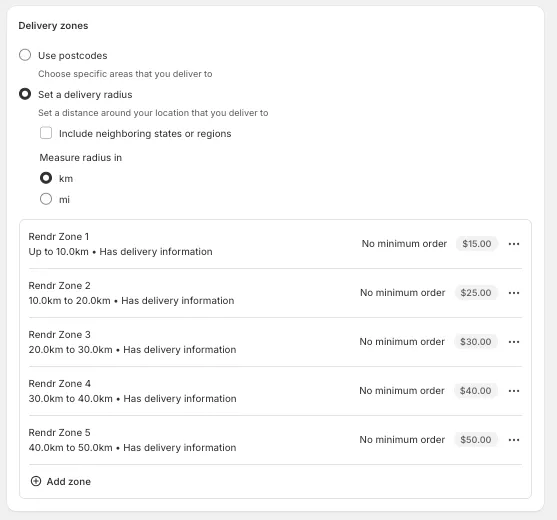
Step 3: Set the delivery zones
Shopify Local Delivery allows you to define delivery areas in two ways.
Option 1: Postcode-based zones
Use this if you deliver to specific suburbs or postcodes. Best for dense metro areas and precise delivery boundaries.
Option 2: Radius-based zones
Use this if you deliver within a set distance from a location.
You can create up to 5 delivery zones, each with its own pricing rules.
Step 4: Set delivery information at checkout
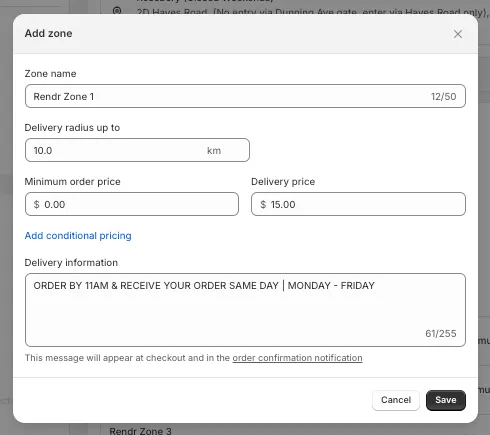
Shopify allows you to add custom delivery information to each zone. This text appears:
- At checkout
- In the order confirmation notification
Example use cases include cut-off times, same-day delivery messaging and delivery day constraints.
Step 5: Update the checkout display name
By default, this option is shown as “Local Delivery” at checkout. You can rename it in your theme.
Edit the default theme content
Find your current (published) theme, click the ⋯ (three dots) menu and select Edit default theme content.
Search for the label
In the search bar, type Local delivery and locate the text field that contains Local Delivery.
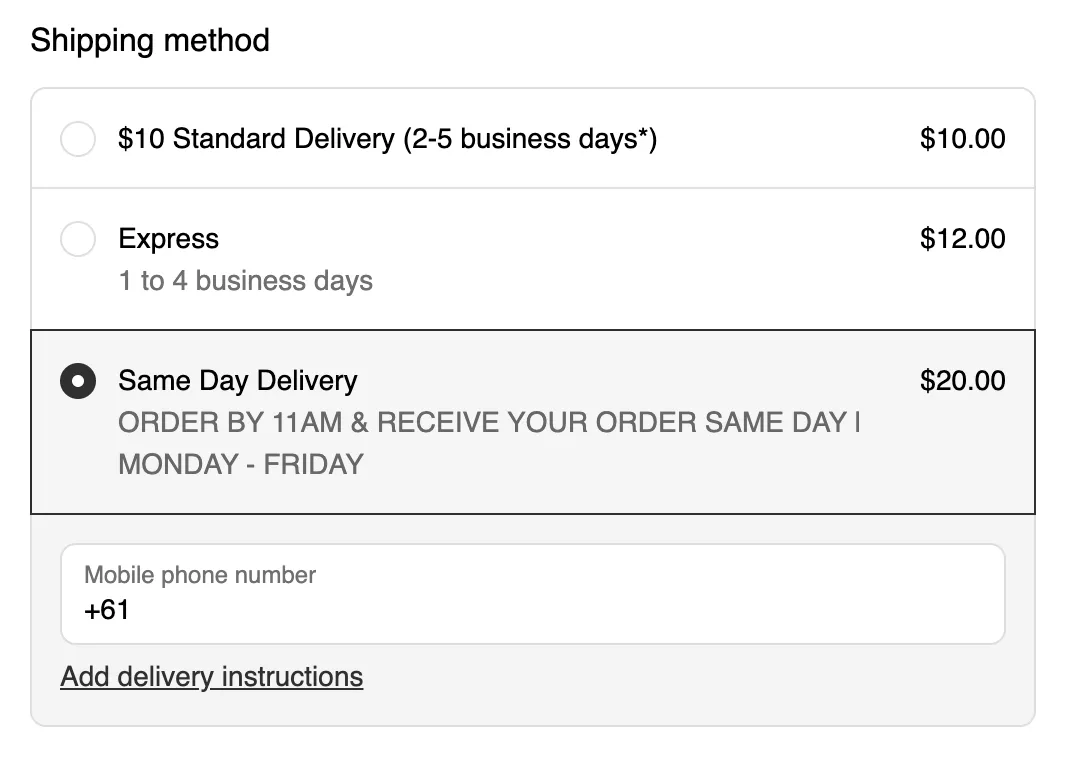
Success: The new name appears at checkout instead of “Local Delivery”.
Multiple locations
You can enable Local Delivery for as many Shopify locations as you like.
Each location can have its own:
- Delivery zones
- Pricing
- Delivery messaging
This works well for multi-store retailers, dark stores and distributed fulfilment networks.
Shopify automatically determines which location is eligible based on inventory availability.
Fulfilment with Rendr
Once an order is placed using Local Delivery, it can be fulfilled in one of two ways.
Option 1: Fulfil via the Rendr Delivery Dashboard
- The order flows into the Rendr Delivery Dashboard (via Shopify Flow).
- The store or warehouse books the delivery.
- Rendr collects and delivers the order.
Option 2: Fulfil via an external platform (e.g. Starshipit)
- The Local Delivery order flows into the external platform.
- The store or warehouse books the delivery, which assigns Rendr as the carrier.
- Rendr fulfils the order.
This approach allows Shopify Local Delivery to act as the checkout logic, while Rendr handles last-mile delivery.
Testing
Testing confirms that Local Delivery shows correctly at checkout and that orders reach your fulfilment platform.
Test 1: In-range address
Success looks like:
- Local Delivery (or your renamed label) appears as a checkout option
- The correct pricing and delivery messaging are shown
Test 2: Out-of-range address
Success: Local Delivery does not appear.
Test 3: Confirm orders reach your fulfilment platform
Success: The order is ready for fulfilment and delivery booking.
Support and troubleshooting
Contact us
For help with Shopify Local Delivery configuration, the Shopify Help Center is the primary reference.
For fulfilment and delivery support, contact Rendr Support.
Common issues
Local Delivery does not appear at checkout
Cause: The customer’s address is outside all delivery zones.
Resolution:
- Review your zone radius or postcode coverage.
- Confirm Local Delivery is enabled for the correct location.
Incorrect delivery price shown
Cause: Zone pricing is misconfigured.
Resolution:
- Edit the delivery zone.
- Confirm the delivery price and minimum order value.
Orders not appearing in Rendr
Cause: Fulfilment routing is not configured.
Resolution:
- Confirm your integration path (Rendr Delivery Dashboard or an external platform).
- Contact Rendr Support to validate order ingestion.