
Rendr BigCommerce App
Overview
The Rendr BigCommerce App allows you to offer Rendr delivery services directly in your BigCommerce checkout.
Once installed, your customers can select Rendr delivery options such as Fast, Flexible or Standard while placing an order.
How it works
- BigCommerce sends order, address and parcel details to Rendr.
- Rendr returns available delivery services and pricing.
- The customer selects a Rendr delivery option at checkout.
- Rendr fulfils the delivery once the order is placed.
Delivery rates and availability are controlled through the Rendr BigCommerce App settings.
What you’ll need
- A BigCommerce store with Admin access
- Permission to install apps in BigCommerce
- Your Rendr credentials, provided by the Rendr team at onboarding:
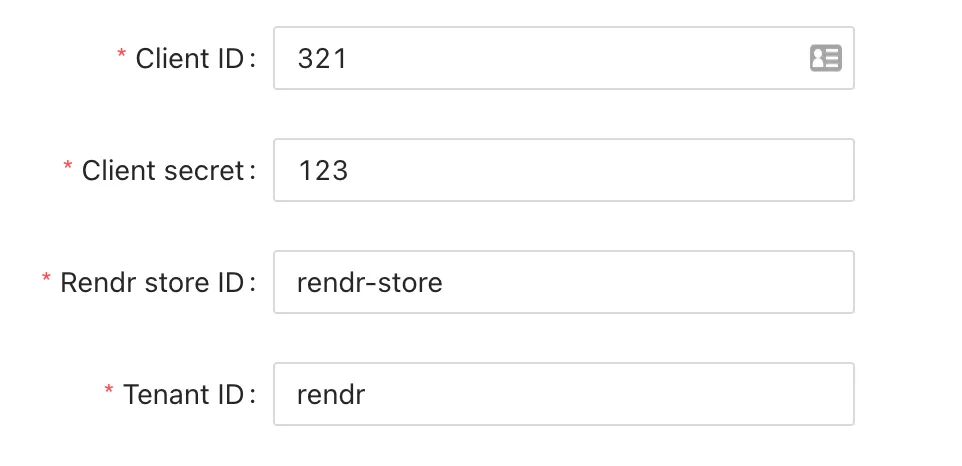
- Client ID
- Client Secret
- Tenant ID
- Store ID
Implementation steps
Step 1: Install the Rendr BigCommerce App
Success: Rendr appears in your installed apps list.
Step 2: Enter your Rendr credentials
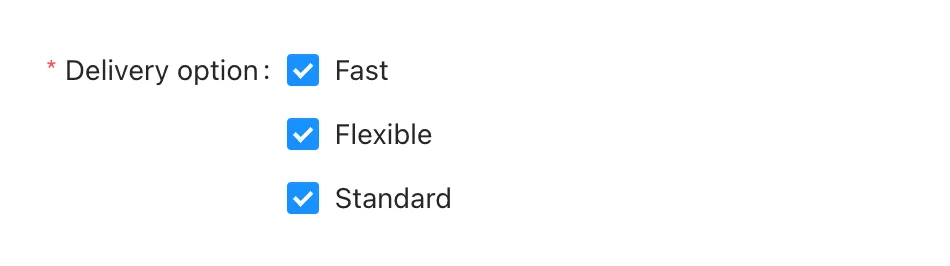
Step 3: Set checkout delivery behaviour
You can choose which Rendr delivery services to show at checkout.
You can enable or disable individual services depending on your offering.
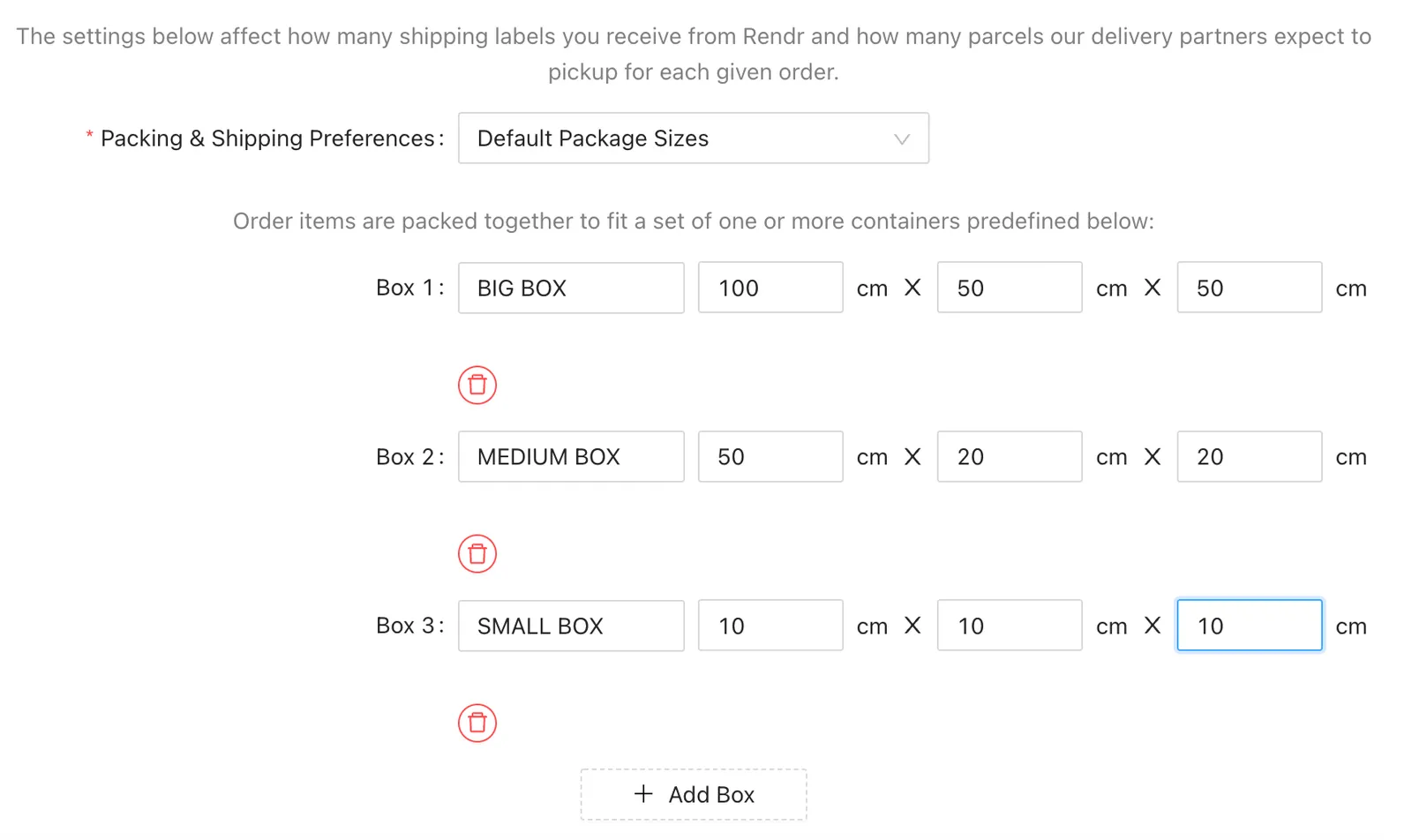
Step 4: Set the packing & shipping preferences
Incorrect packing configuration may cause pickup or pricing issues.
These settings control how parcels are created and how many shipping labels are generated.
Step 5: Ready for the Go-Live!
To display Rendr delivery rates at checkout, Rendr must be enabled as a shipping provider.
Success: Rendr delivery rates appear during checkout.
Testing
Testing confirms Rendr rates and services are available to customers.
Test checkout delivery options
Enter customer and address details
Enter the customer and address details. Choose an address within the agreed distance of your Rendr services.
For example:
- Fast (3-hour) option will show up if the shipping address is located within 20km from the dispatch location.
- Flexible (Same Day / Next Day) option will show up if the shipping address is located within 50km from the dispatch location.
Success looks like:
- Rendr delivery options appear as shipping methods
- The order is placed successfully
- Rendr is selected as the shipping method for the order
Support and troubleshooting
Contact us
If you need assistance, contact Rendr Support.
Common issues
Rendr delivery options do not appear at checkout
Cause: The Rendr carrier is not connected in the shipping zone.
Resolution:
- Go to Store Setup > Shipping.
- Edit the relevant shipping zone.
- Click Connect next to Rendr.
- Save your changes.
Authentication error in the Rendr app
Cause: The Client ID, Client Secret, Store ID or Tenant ID is incorrect.
Resolution:
- Re-open the Rendr app Configuration page.
- Copy and paste your credentials again.
- Save and refresh the page.