
Bespoke Shipping App
Facilitate Rendr as shipping rate rules for your Shopify store and support multi-location fulfilment with store-aware quoting
Overview
Bespoke Shipping is a third party Shopify app that connects a merchant’s Shopify checkout to Rendr’s Quote API. It is the recommended quoting method for any merchant dispatching from more than one location.
How quoting works
- Shopify sends the checkout delivery details to Bespoke.
- Bespoke calls Rendr’s Quote API to request live rates.
- Rendr returns live services, pricing and ETAs for Fast (3 Hour) and Same Day.
- Bespoke displays these as selectable shipping rates at checkout.
How multi-location quoting is supported
- Bespoke imports every Shopify location, and the merchant maps each one to a Rendr store ID.
- At checkout, Bespoke reads per location inventory to identify which stores hold the items in the cart.
- Only those eligible store IDs are passed to Rendr, with “Return rates from” set to “Closest Store”.
- Rendr selects the optimal fulfilment location based on proximity, service level and service availability, then returns the rate for that store.
Success looks like: Once configured with Rendr, customers see accurate, real time delivery pricing at checkout, and each order is quoted against a store that can genuinely fulfil it.
What you’ll need
- Admin access to your Shopify store, with permission to install apps
- Your Rendr credentials, provided by the Rendr team at onboarding:
- Client ID
- Client Secret
- Tenant ID
- Store ID(s)
Implementation steps
Step 1: Install the Bespoke Shipping App
Please install Bespoke Shipping App: https://apps.shopify.com/custom-shipping-rates.
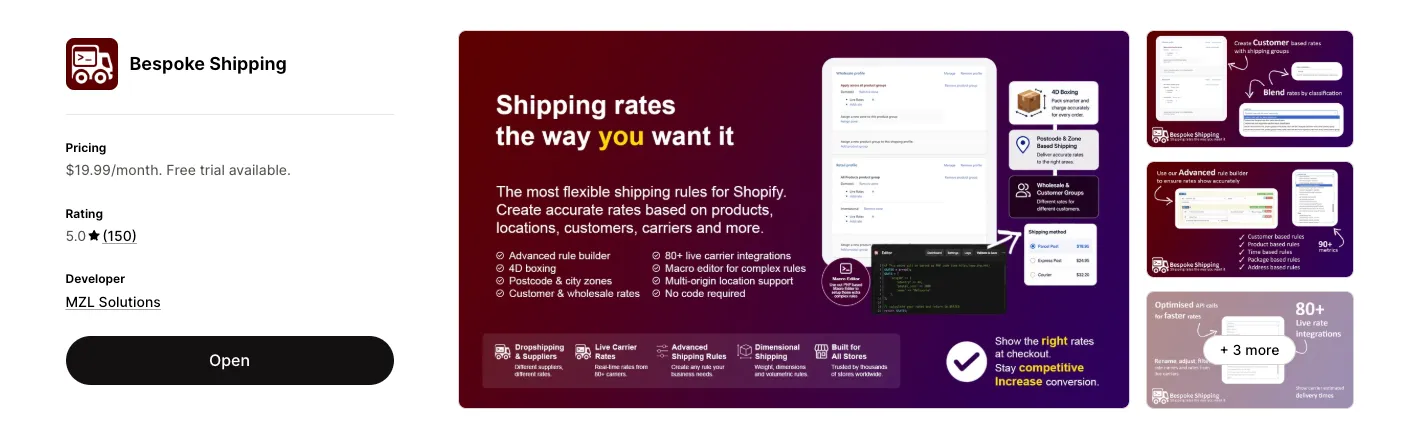
Success looks like: Bespoke Shipping appears in your Shopify Apps list.
Step 2: Launch the Bespoke Shipping Wizard
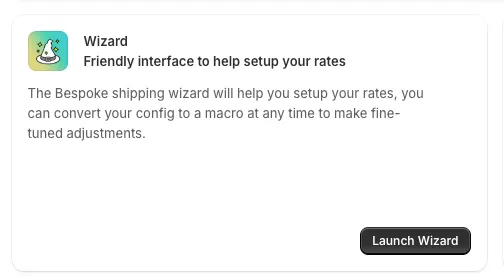
This wizard guides you through setting up shipping rates.
Step 3: Configure Rates
Go to the Locations tab to import all Shopify locations
- Inside Bespoke Launch Wizard, go to “Locations”.
- Verify the warehouse locations are all correct store locations registered in your Shopify.
- If you have recently added new locations from Shopify, click “Import Locations” so the new locations are imported to Bespoke.
- Once you have verified all locations are imported correctly, click “Save Settings”.
Go to the Rates tab to set up Rendr delivery rates
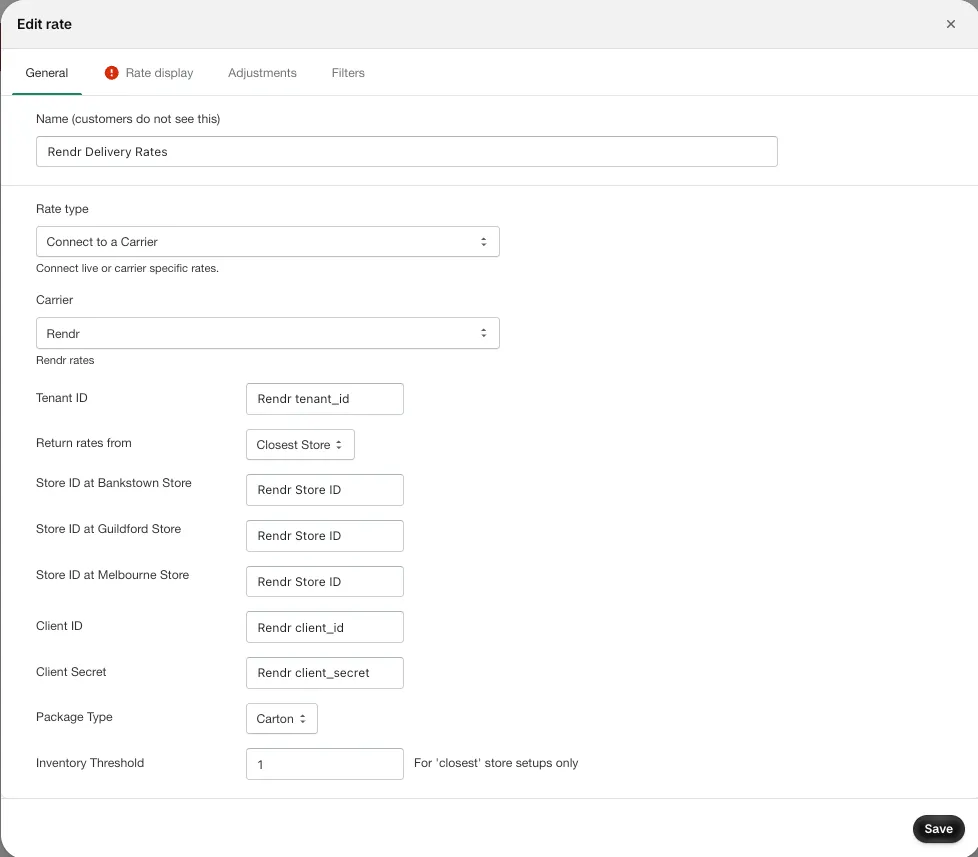
Under “Saved Rates”, click on “Add Rate” or “Edit Rate” (if you have previously setup Rendr rates).
Go through the following steps:
General tab
- Under “General” tab, fill in the following details:
- Set the inventory threshold. This is applicable if you want to show rates only when the particular inventory threshold is being met.
Rate display tab
Under “Rate display” tab, fill in the following details:
Adjustment tab
Leave “Adjustment” tab as it is.
Filters tab
Go to “Filters” tab and verify:
- “Include rates faster or equal to” =
Include all ETAs - “Include rates where the ETA is not available” is tick
- “Rate is active under all circumstances” is tick
Step 4: Invoke Rates to Bespoke Profiles
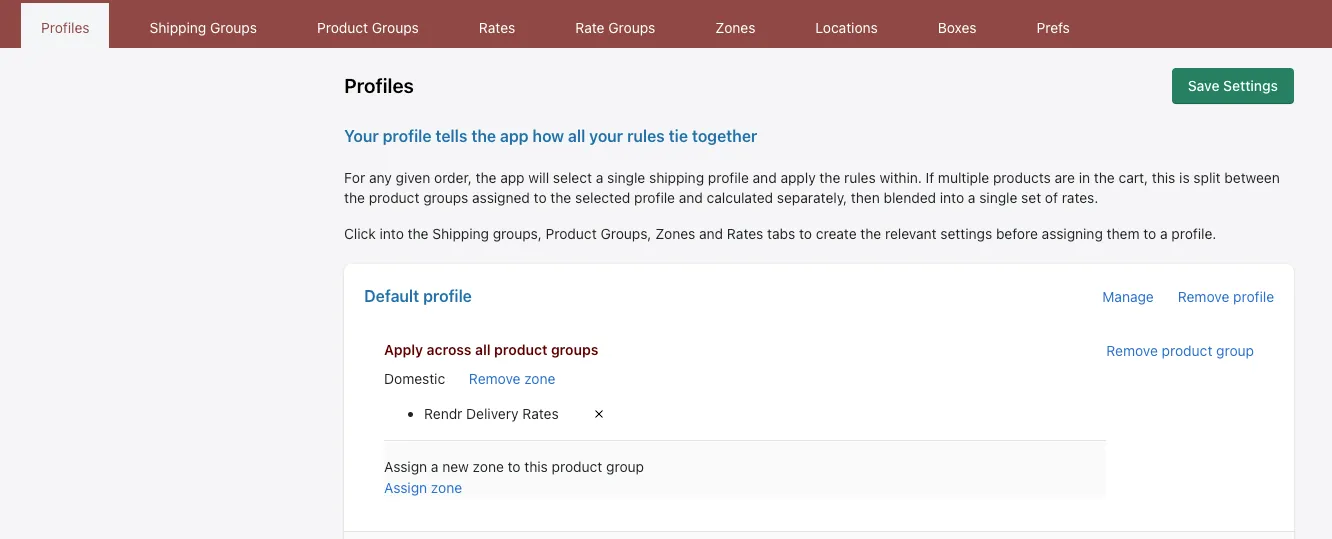
Once you have saved the rate, navigate to the “Profiles” tab and add the Rendr Delivery Rate created to the profile.
Step 5: Enable Shipping Rates & Test Mode
Once you are ready to activate the rates and Bespoke profile:
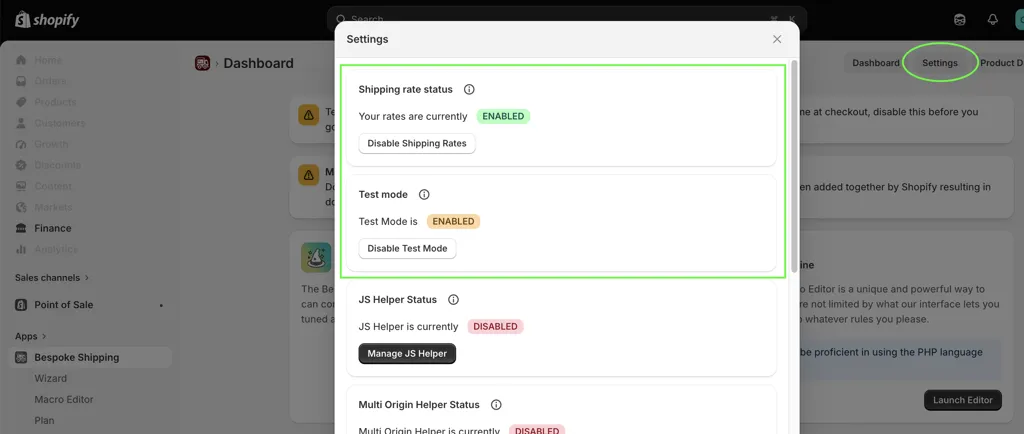
Go to Testing section to test checkout experience before turning the rates live.
Step 6: Activate Production mode & Go Live!
When you’re ready to go live, set the “Test mode” = “DISABLED”.
Success looks like:
Your store will begin returning accurate, real-time Rendr delivery rates at checkout to your customers!
Testing
Please ensure your Bespoke’s setting has set Test mode = ENABLED.
While Bespoke is in Test Mode, the rates won’t be visible to live customers yet. You’ll be able to test the flow safely. Once you are ready to go-live, you will simply need to turn off the Test Mode and this will switch live rates in production.
To test the quoting & checkout flow:
Success looks like: Rendr live delivery rates appear as shipping options.
Support and troubleshooting
Contact us
If you need assistance, contact Rendr Support.
Common issues
Rendr rates are not appearing at checkout
Cause: Shipping Rates isn’t enabled or Rates haven’t been invoked to Profile.
Resolution:
- Go to Bespoke settings, verify that Shipping rates = ENABLED
- Go to Launch Wizard and check Profiles have been set to correct product group, zone, and Rendr delivery rates
Authentication error when saving credentials
Cause: Client ID or Client Secret is incorrect.
Resolution:
- Re-copy the production credentials from Rendr team
- Paste them carefully into the correct fields
- Click Save
- And then click Save Settings again in the main menu
Rates are returned from the wrong location
Cause: Shopify Store ID mapping is missing or incorrect.
Resolution:
- Go to Launch Wizard
- Go to Rates tab
- Click Edit on the Rendr Delivery Rates
- Ensure Return Rates From = Closest Store
- Confirm each Shopify location has the correct Rendr Store ID